Turbo Soccer Graphics and HUD Settings
Where Turbo Soccer's graphics and HUD settings live and what each one visibly changes: Max performance mode, PC FOV, and menu, HUD and minimap size controls, plus mobile HUD fixes.
Turbo Soccer keeps its graphics and HUD controls in one in-game menu. Open that menu and you get "a lot of different types of controls" in a single place: a graphics mode with a Max performance preset, menu size, in-game HUD size and minimap size, plus camera settings right beside them. Shrinking the interface frees up the screen so you can see more of the match; switching the graphics mode smooths play when lag creeps in. There is no longer path to memorize — the documented route is simply to open the menu and adjust the options there.
Where the graphics and HUD settings live
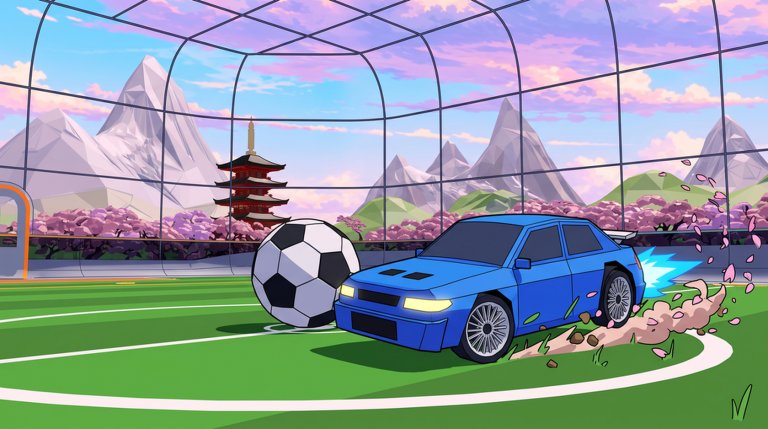
Every display option covered here sits in the same in-game menu. The walkthrough that demonstrates them opens the menu once and changes the graphics mode, menu size, in-game HUD size and minimap in a single pass. No tab names or deeper navigation path are documented, so don't go hunting for a dedicated settings tab — open the menu and look for the controls there. Camera settings share that menu too, though they do a different job (more on that below).
Performance settings: graphics mode and quality
Graphics mode. If you're experiencing lag, change the graphics mode to Max performance. The stated effect is plain: it "will basically allow you to play the game more smoother." Max performance is the only preset current guides name — the rest of the list isn't documented.
Graphics and shadows (PC). Lower graphics quality when your FPS dips below a stable competitive rate — the reasoning being that "input lag loses more kickoffs than pretty shadows."
If your device throttles. When stutter shows up after roughly ten minutes of play, verify FPS first: "a locked 60 with honest inputs beats a stuttering 120." Close overlays, lower shadows and keep your practice checklist short.
On mobile. Lower graphics if frames stutter mid-challenge — it's the listed fix for heat and battery strain.
Note the bounds: these effects are described qualitatively — "more smoother" play and a stable competitive rate. No measured FPS figures exist for any of these settings.
HUD controls you can shrink
Interface size is where readability wins come fastest, and the result is immediate: after turning down menu size, in-game HUD size and the minimap, the demonstrated screen "looks a lot more better," with a lot more of what's going on left visible.
| Setting | Where | What to change | What you'll notice |
|---|---|---|---|
| Graphics mode | In-game menu | Switch to Max performance when lag hits | Smoother play |
| Graphics / shadows | PC | Lower it when FPS dips below a stable competitive rate | Steadier play and less input lag |
| FOV | PC | Raise it until the HUD no longer hides soft dribbles | Dribble moves stay readable |
| Menu size | In-game menu | Turn it down a little | See more of what's going on |
| In-game HUD size | In-game menu | Turn it down | See more of what's going on |
| Minimap size | In-game menu | Make it smaller | More of the field visible |
| Camera distance ("far") | In-game menu | Pick the far camera | Everything zoomed out; a wider view of the play |
| HUD clutter and camera height | Mobile | Shrink HUD clutter; raise the camera | Your thumbs stop covering the ball |
| Button size | Roblox settings (platform-level) | Enlarge buttons where available | A cramped HUD becomes easier to tap |
Minimap options: size is the confirmed control
The one documented minimap control is its size — "You can also make the mini-map smaller" — adjusted in the same settings pass as menu size and in-game HUD size. The written guides corroborate that size-control settings surface but don't name the minimap specifically, and nothing documents a minimap position, opacity or hide option. If you were hoping to move or hide it entirely, size is what the current game is documented to offer.
Mobile HUD and buttons
- Play landscape and force it every session — portrait is listed among the common mobile mistakes.
- Shrink HUD clutter and raise the camera when your thumbs cover the ball.
- Keep button scale at the maximum you can still reach. If the default HUD feels cramped, you can enlarge buttons in Roblox's own settings where your device offers it — that's a Roblox platform-level adjustment, not a developer-added Turbo Soccer menu option. Retest in a casual match before carrying new button sizes into ranked.
- Lower graphics if frames stutter mid-challenge, as covered above.
Camera settings share the menu — but they aren't graphics settings
The same menu holds camera settings next to the graphics and HUD options: a "competitive" style preset (recommended, though the choice is personal preference), a ball cam on/off toggle worth practicing both ways, and a "far" camera that "will basically have everything zoomed out." That far camera earns its place on this page only as a readability option — a wider field of view — not as a graphics quality setting, and camera tracking and angle presets are their own topic. Key bindings are separate as well; the controls guide covers device key mappings.
Change it, then test it in a match
A sensible pass: open the in-game menu, set Max performance if you're lagging, trim menu size and in-game HUD size, shrink the minimap, and raise FOV on PC. Then play an actual match — that's the real check. The documented promise is smoother play and a stable competitive rate, not benchmark numbers, so judge each change by how much of the field you can actually read. Once the HUD is out of the way, use the Turbo Soccer camera settings guide to frame the view you just uncovered.